

Formulas are available on request. Contact Kombo support to enable
them for your environment.
Why use an advanced mapping?
Custom fields give you one stable key across integrations. You might map T-Shirt Size from one connected system and Workwear size from another tot_shirt_size. Your application always reads custom_fields.t_shirt_size.
Sometimes this 1:1 mapping isn’t enough. One connected system might store the size L, while another only stores a height in centimetres, such as 178.
With an advanced mapping, a short TypeScript formula transforms the source value before Kombo writes it to the custom field:
178 becomes L under custom_fields.t_shirt_size. Integrations that already store L keep a direct mapping.
Other common uses include:
- combine
first_nameandlast_nameinto one display name - split a single
30000 EURfield into an amount and a currency - calculate an FTE from weekly contract hours
- translate values into your own naming convention, for example turn
Vollzeit,full time, orFTinto the samefull_timevalue - read a value that sits inside a nested response, especially useful for systems like Workday or SuccessFactors
How advanced mappings work
Formulas are configured for a specific integration. They run when Kombo processes mapped custom fields during a sync, including records written from an incoming webhook. Records created by write actions, such as creating a candidate, get the formula value on the next sync. The model must havecustom_fields in scope, and the connector must support custom fields for that model. Formulas run after field remapping.
Input and result
Every formula receives aFormulaInput and must return a FormulaResult. The editor injects these types; you do not import them.
During a sync, the formula receives the values Kombo is processing for that record.
data.remote does not need the deprecated remote data feature.
Fields and paths can be missing or null, and records can have different shapes. Use optional chaining when reading nested values.
data.remote is grouped by request path, and one record can contain several paths. The input snapshot shows which paths are available for the selected record.
data.unified does not include id, remote_id, changed_at, remote_deleted_at, custom_fields, integration_fields, remote_data, or relation foreign keys. Use data.remote for raw data from the connected system. Date fields arrive as ISO strings.
FormulaResult must be JSON-compatible: text, a finite number, true or false, null, an object, or an array. A top-level undefined is stored as null; a top-level function is rejected.
TypeScript types help you in the editor only. Kombo strips them before running the formula and does not type-check it on the server, so a formula with the wrong return type can still be saved.
Create an advanced mapping
Create the target custom field
First, create the Kombo custom field that should contain the transformed value. For example, if your product expects one formatted location for every job, create a job custom field with the keyformatted_location. The rest of this walkthrough uses that field.
Make sure custom_fields is enabled for the relevant model in the integration’s scope configuration. Run a sync so Kombo can discover fields and records you can use to preview the formula. The mapping control stays disabled until a sync discovers fields for that model.
Open the formula editor
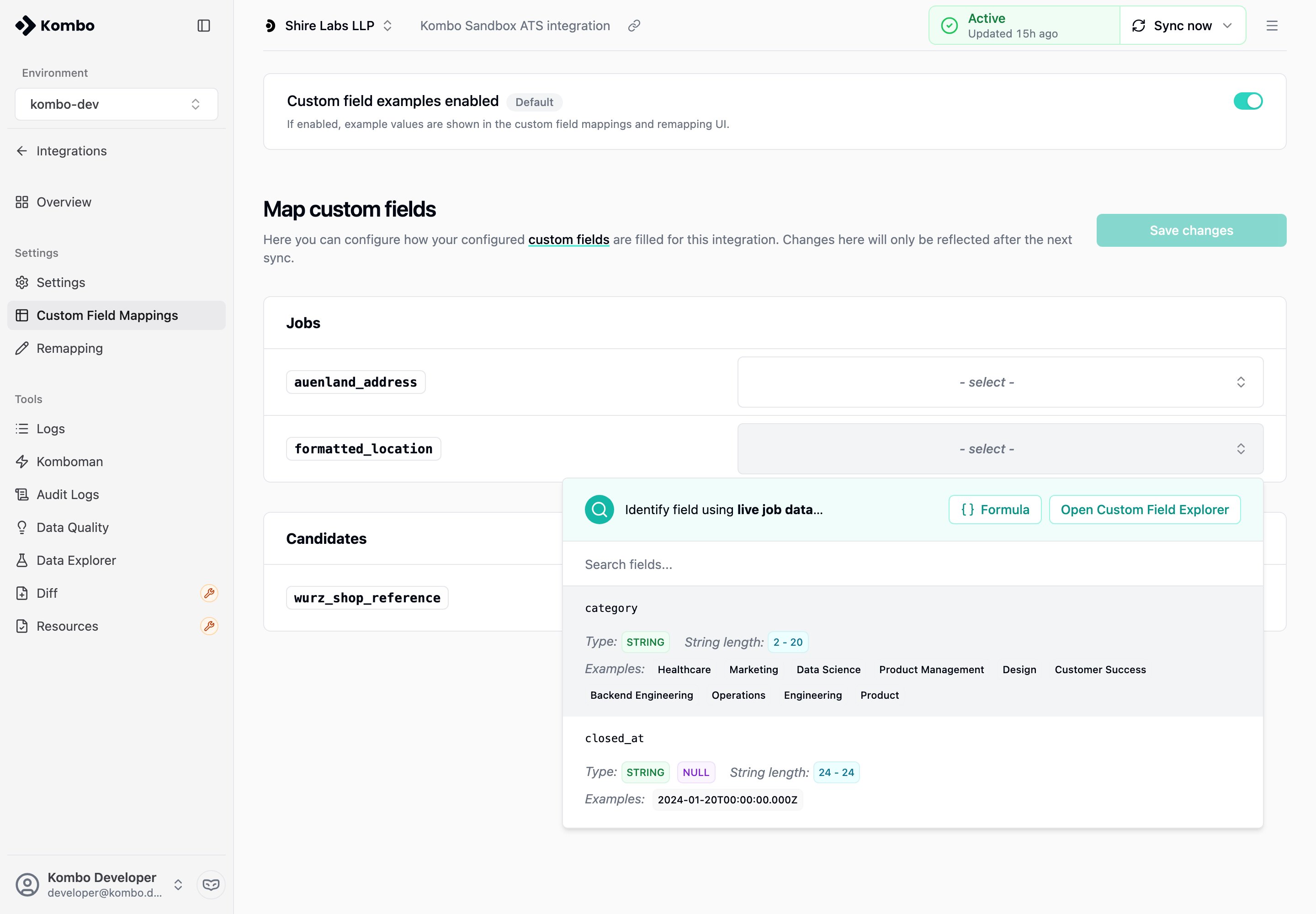
Open the integration in the Kombo dashboard and go to Custom Field Mappings. Find the target custom field and open its mapping dropdown. There is no Formula option in the field list. Use the banner button instead:- Formula, when the Custom Field Explorer is available for this integration
- Open Formula Editor, when it is not
Select an example record
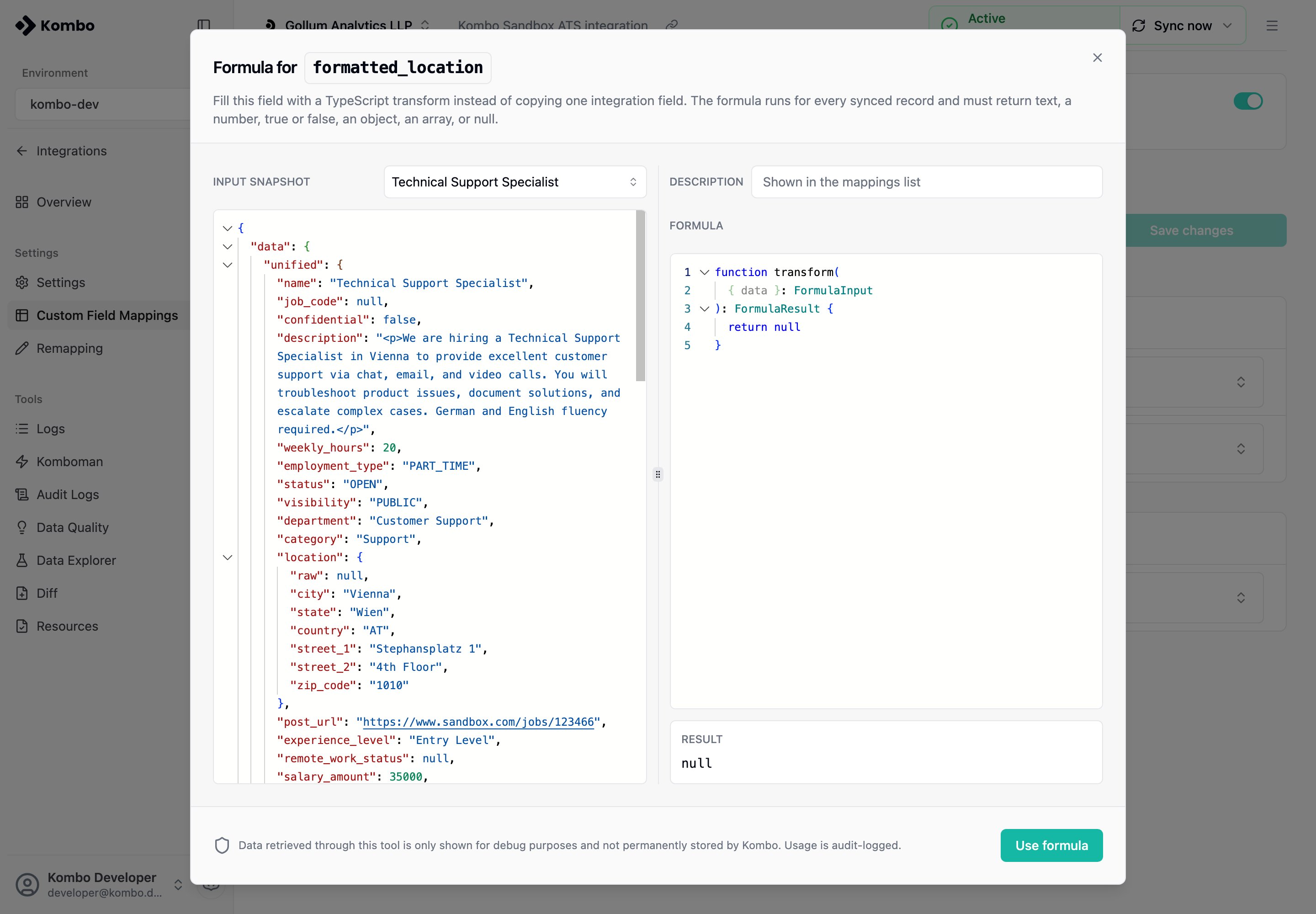
Nothing is preselected. Choose an example record at the top of the formula editor. Each choice is audit-logged, and the editor needs at least one already synced record. Kombo then shows an Input snapshot with the data available to the formula. Use it to inspectdata.unified and the paths under data.remote. They differ between connected systems.
Write and preview the formula
The entry point must befunction transform. const transform = () => { … } is refused.
Formulas cannot use console, require, import, or fetch. The preview runs automatically about 500ms after you stop typing.
The editor suggests the available fields while you type. For example, this formula reads a nested address from the connected system and formats it as one value:
null when the source record does not contain a value.
The Use formula button becomes available once the current formula evaluates successfully, including when it returns null. Before using it, select a few representative records to check how the formula handles empty fields and different values.
A preview can succeed and Save changes can still refuse the mapping. Saving checks that this connector supports custom_fields for the model; preview does not.
Save the mapping
Click Use formula to return to the custom field mapping page, then click Save changes. Kombo schedules a refresh sync after the mapping changes. Once the sync finishes, the formula result appears under the custom field’s key in the Unified API:Common transformations
Normalize a value
You can turn a value from the connected system into the vocabulary your product uses. For example, this formula groups weekly working hours into two values:Use a fallback
Use the first available value when customers store the same information in different places:Read a nested value
Usedata.remote when the value is available in the connected system but not in Kombo’s unified model. The path and field names depend on the connected system and are shown in the input snapshot.
Limits
Kombo can raise the serialized input limit for an individual integration.
Formulas should perform small, deterministic transformations. They cannot call external APIs or use the current date or random values.
If a formula fails
If a formula throws or returns an invalid value for a record, Kombo skips writing that record. Previously stored values stay as they were; the custom field is not set tonull. Other records in the resource still process.
If more than 5% of a resource’s records fail, the sync is marked FAILED. A formula that fails for every record will fail the sync.
On a full or default sync, formula errors also skip deletion tracking for affected data. Kombo will not mark missing records as deleted until a later successful sync.
Debug a formula
If a formula fails during a sync, open Logs. The customer-facing entry is a resource-level parsing error:Parsing the resource "…" failed. It does not include the formula text, the record data, or the detailed error.
Custom Fields
Create the target field and learn how mappings work.
Logs
Investigate a formula that failed during a sync.