

What are Kombo custom fields?
Kombo’s unified models cover the fields that are standard across HR, ATS, and other business systems. When your product needs additional read-side data, custom fields let you extend those models with your own stable field keys. For example, you might addt_shirt_size to employees, benefit_eligibility to employments, or source_campaign to applications. Once a custom field is configured and mapped, Kombo returns it in the custom_fields object of the relevant API response.
This makes custom fields a good fit whenever you need a data point that is not part of Kombo’s standard unified model, but you still want to read it in an integration-agnostic way.
Custom fields are for reading additional data from connected systems.
Looking to write extra data when creating candidates or applications? See
Remote Fields. For
a full comparison of all extension mechanisms, see Extending the
Model.
How mappings work
A Kombo custom field is the target field that appears in your API response. A field from the connected system is the source field that provides the value for a specific integration. The source field can be anything Kombo can discover from the connected system: a standard field in that system, a field that only that system has, or a custom field that your customer created in their HR or ATS tool. For example:- A Personio employee attribute called “Favorite Color” can be mapped to your Kombo custom field
favorite_color. - An employee field from the connected system for cost center, employment type, or benefit eligibility can be mapped to a Kombo custom field if your product needs that value and Kombo’s standard model does not expose it exactly the way you need.
- Different customers can use different field names, such as “Favorite Color” and “Favourite Colour”, while your API integration always reads the same Kombo key.
Setting up custom fields in Kombo
Create the Kombo custom field
Open the Dashboard and click on Configuration in the sidebar, then on the Custom Fields tab.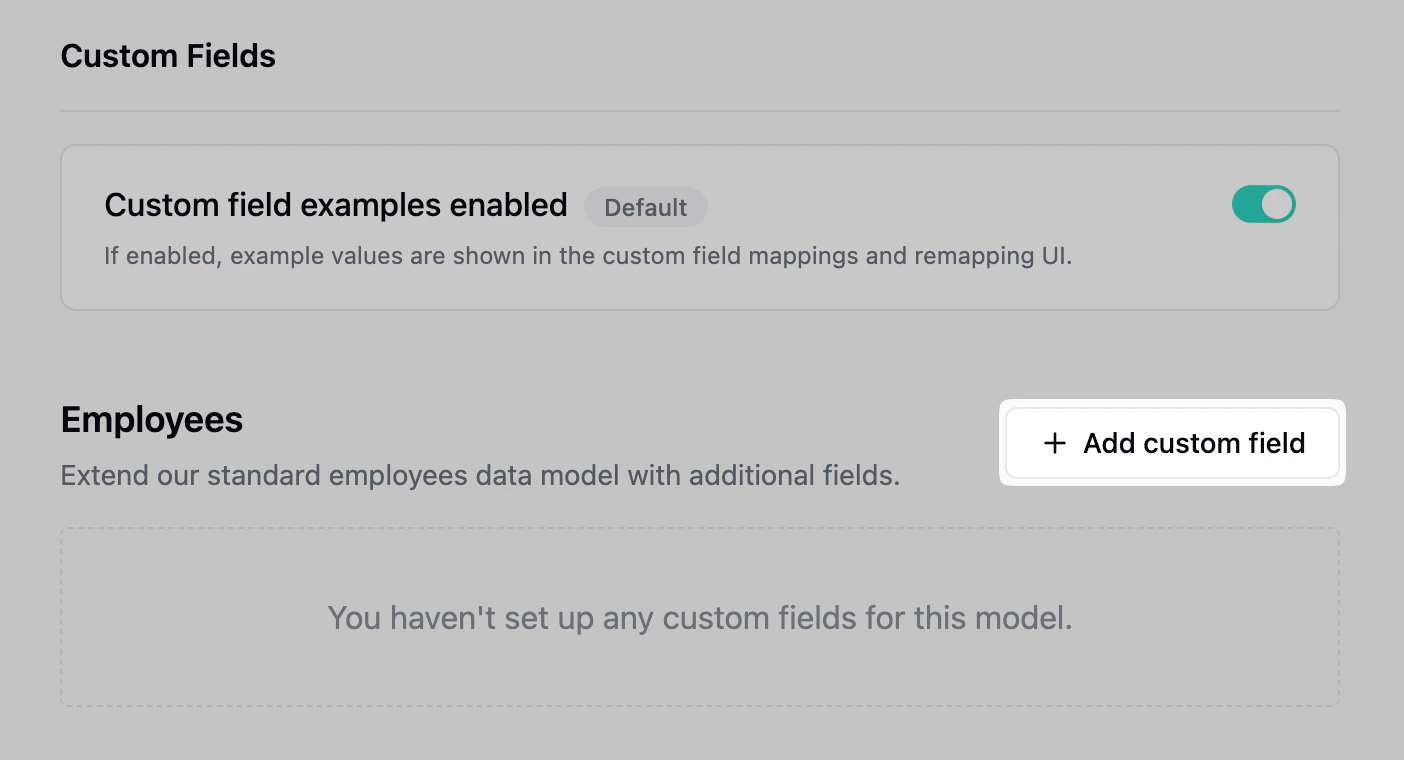
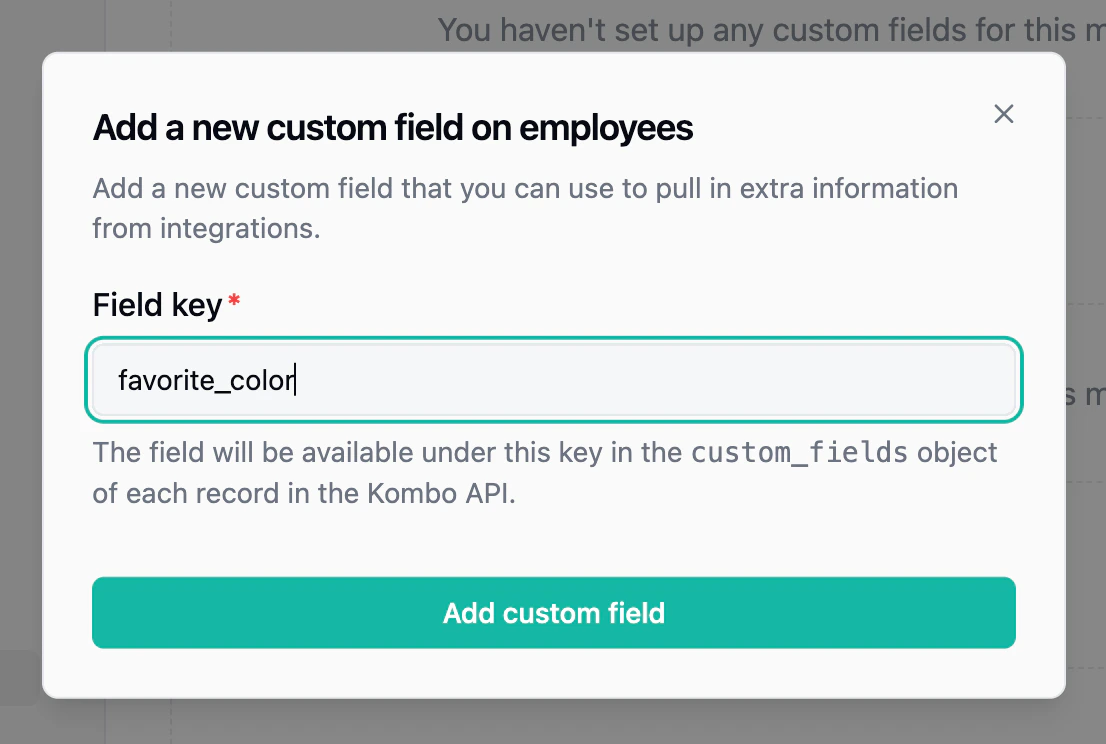
favorite_color. The field key you choose here becomes the key in the custom_fields object of every mapped record.
Prepare the field in the connected system
Sometimes the field you want to map already exists in the connected system. In other cases, your customer may first need to create or expose it there. Let’s take Personio as an example where the source field is a custom attribute in the HR system. Under Settings > Employee Information, you can add new attributes or entire sections to employee profiles. We will add a new attribute called “Favorite Color” to the “Public Profile” section.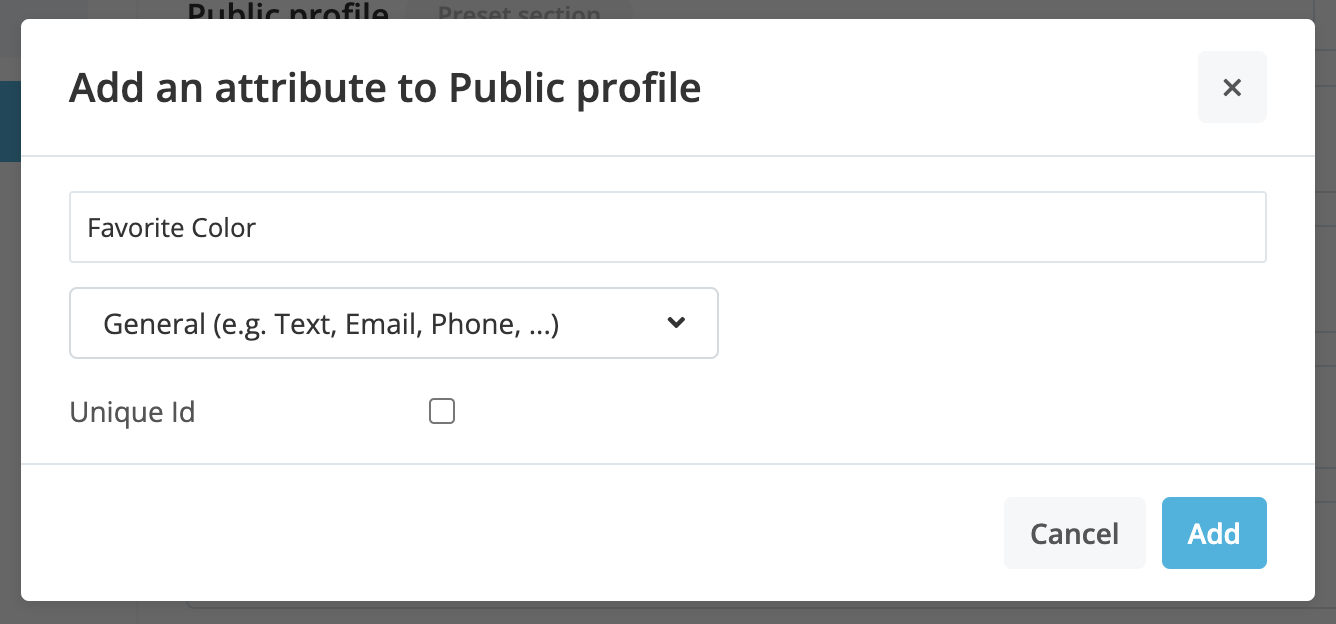

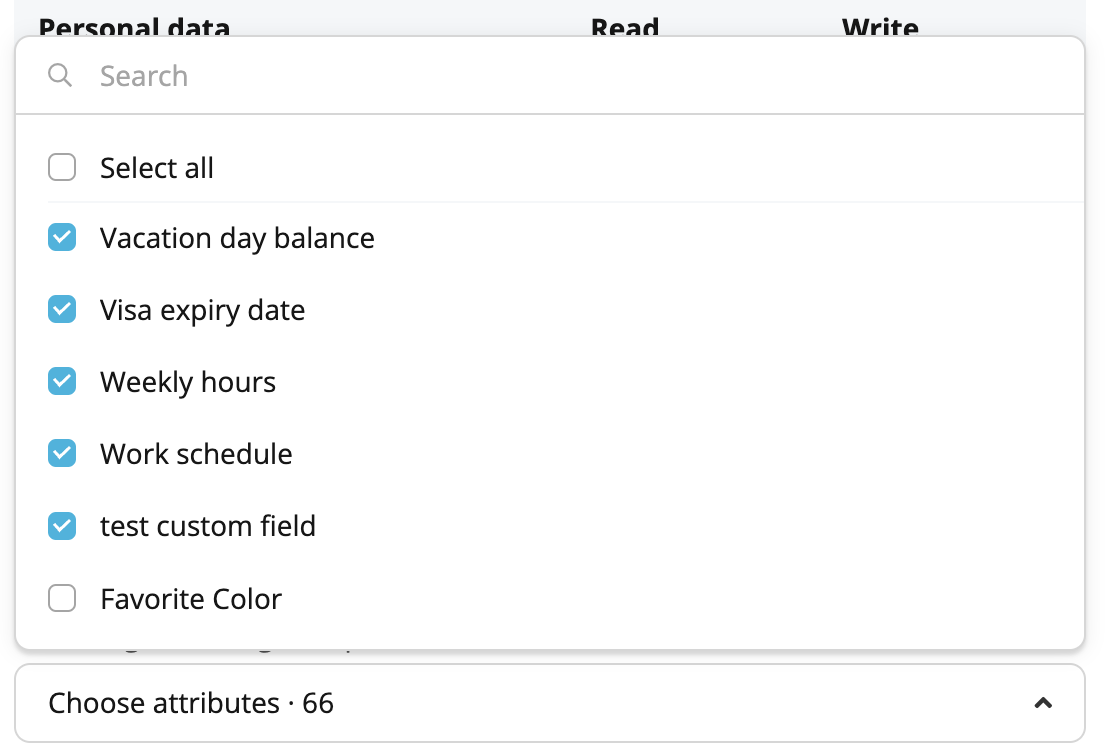
Map fields manually
To map a field manually, open the overview for the integration. Kombo discovers available fields during syncs, so run a sync first if the field is new or has not appeared yet. After the sync is finished, open the custom field dropdown for the relevant model and select the field from the connected system that should fill your Kombo custom field.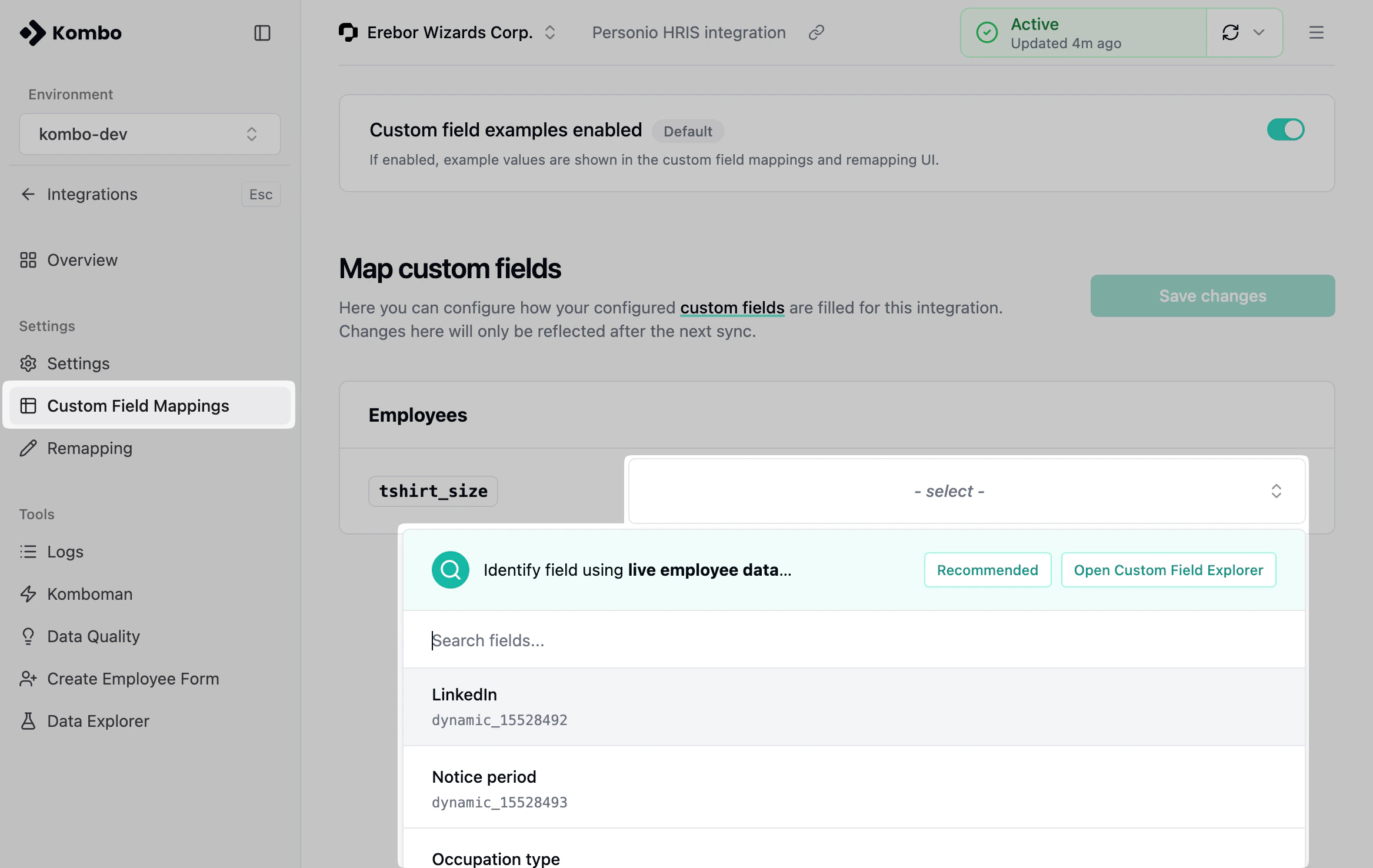
Map fields based on live data
For supported integrations, the custom field dropdown also includes a recommended option to Identify field using live data (see screenshot above). Click Open Custom Field Explorer to search the connected system directly and find the field based on real records.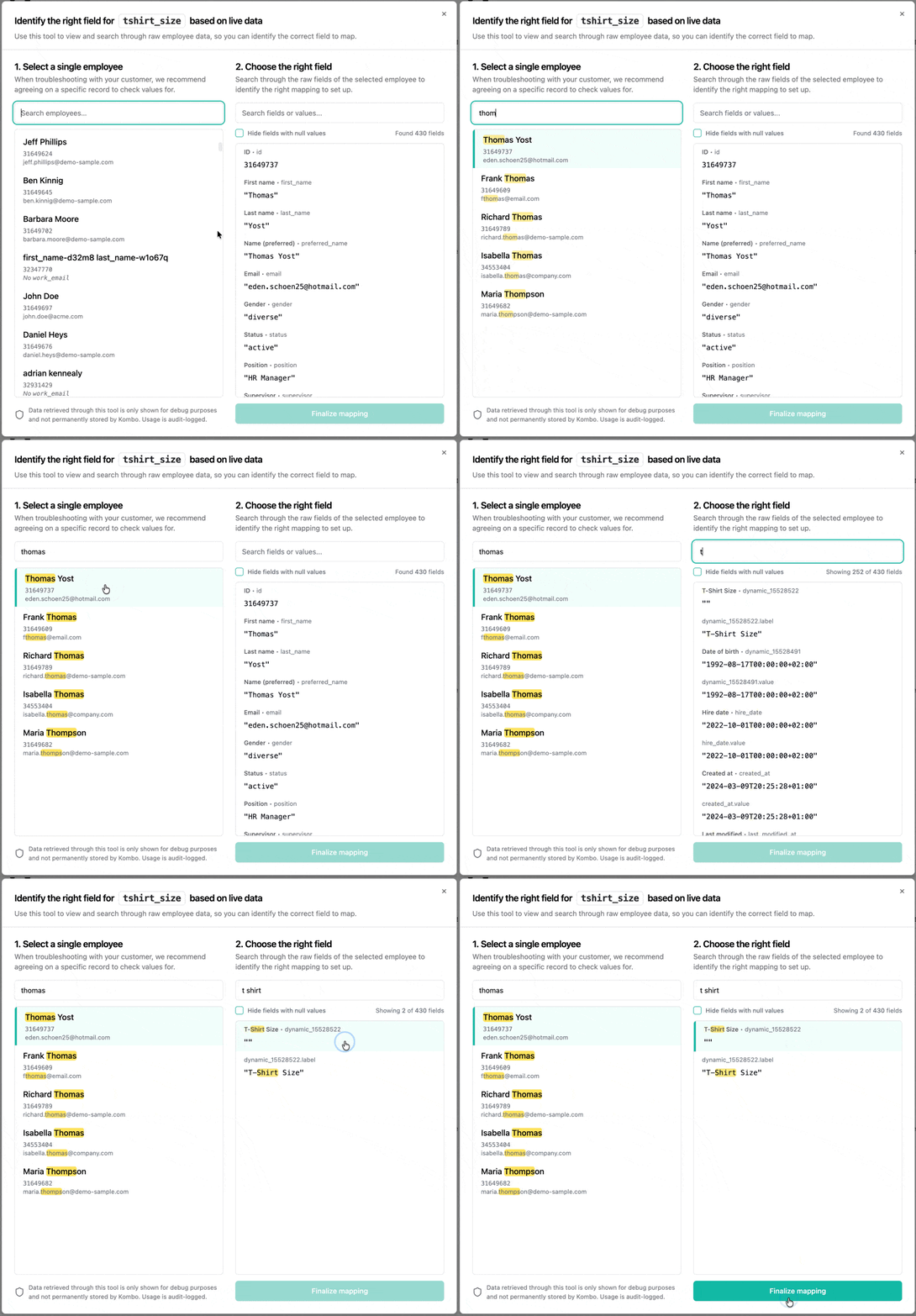
Change values with advanced mappings
A direct mapping works when the connected system already returns the value in the shape your product needs. Sometimes you need to combine several fields, translate a value into your internal schema, or read from a nested response. In those cases, you can use an advanced mapping to calculate the custom field value with a TypeScript formula. Formulas are configured per integration. Your application still reads one stable Kombo custom field, even when each integration needs a different formula. Picking a field in the dashboard removes a formula on that custom field.Advanced Mappings
Learn when to use a formula and configure one in the Kombo dashboard.
Add automatic mapping rules
On the custom field detail page, you can see how many integrations use the field and which automatic mapping rules are defined for it. Automatic mapping rules tell Kombo which fields of new integrations should automatically be mapped to this Kombo custom field. Each rule matches against a field key or label and can optionally be scoped to a connector. You can add as many rules as you need. Click Add rule to create a new automatic mapping rule.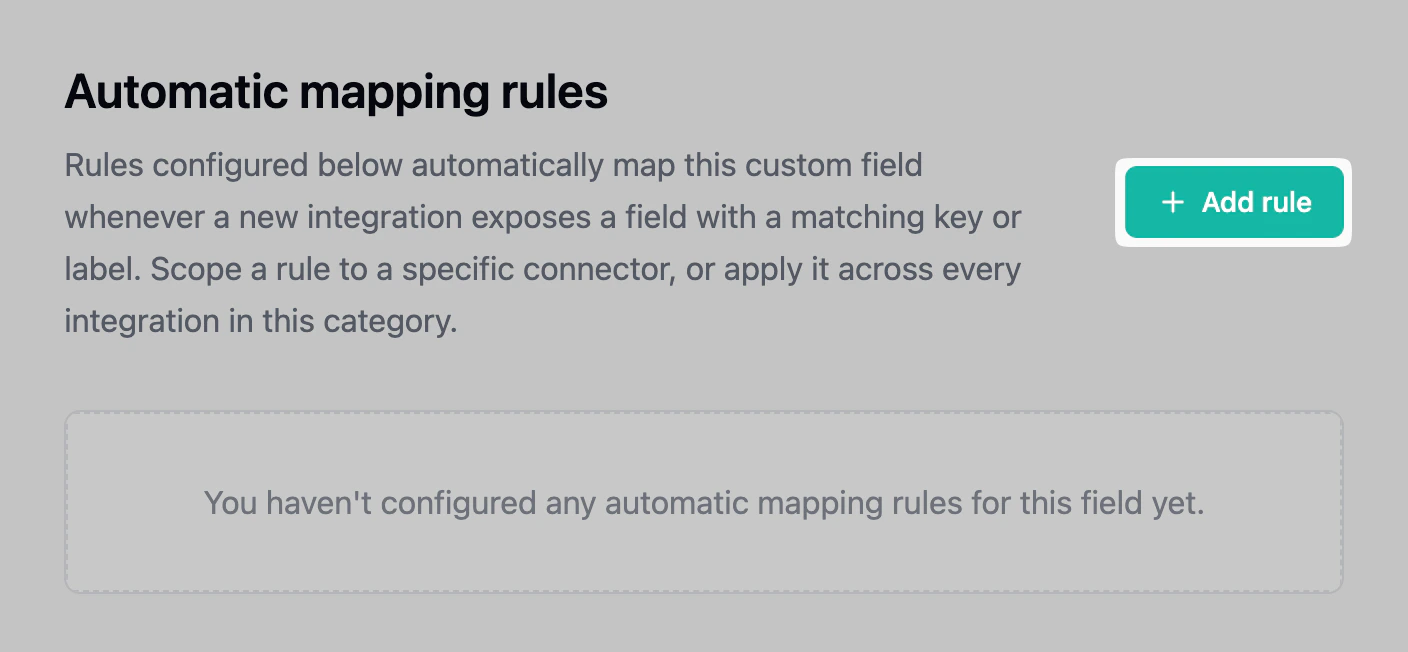
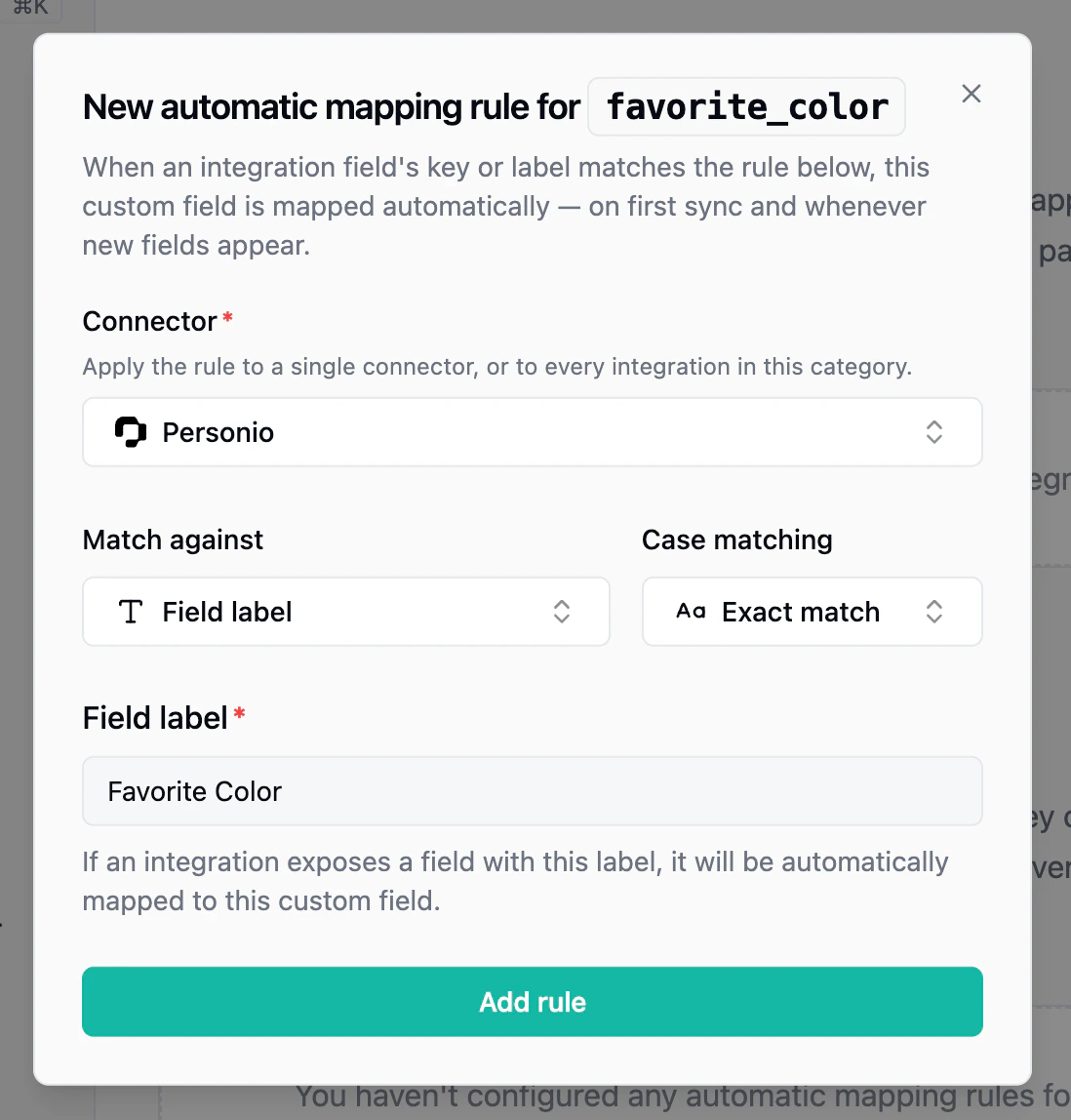
favorite_color.
Automatic mapping rules skip custom fields that already have a formula on that integration.
Self-Serve Custom Field Configuration
To simplify the mapping process, you can allow your customers to map fields themselves using our self-serve Setup Flow. This is especially useful when your customer knows best which field in their system contains the value your Kombo custom field should receive. Custom fields can be mapped as part of the connection, reducing the need for manual setup. Self-serve mapping is switched off by default on every new custom field. To expose a field to your customers, open the field’s detail page and turn on Self-serve mapping. You can optionally mark it as required, so the customer cannot complete the step without mapping it. Fields left switched off never appear in the Setup Flow, even when field mapping is enabled on the integration. If a custom field is filled by a formula on that integration, it is hidden from the Setup Flow and does not count as required but unmapped. Your customer is not asked to map it. Learn more about enabling self-serve field mapping here.Accessing custom fields in the API
Each model that supports custom fields has acustom_fields attribute. This attribute is a JSON object containing all mapped Kombo custom fields for that record.
When you query the API, you receive mapped custom field values in the custom_fields attribute. In this example, we query the GET /employees endpoint.
The value of a directly mapped custom field mirrors what is returned by the underlying API. An advanced mapping can instead calculate the value from unified fields or raw data from the connected system. In either case, the result is not always a string; it can also be a number, boolean, object, array, or null.