Staffing entities represent the hiring
structures (positions, requisitions, jobs) inside an HRIS. Many enterprise HRIS
systems (e.g., Workday, UKG Pro, SAP SuccessFactors) require new employees to
be hired into one of these entities rather than created as standalone
records.As an ATS provider, you integrate staffing entities in two phases:
Requisition / job posting setup. When your user creates or edits a
requisition (or job posting — whatever your ATS calls its hiring object),
you let them pick a single staffing entity from the connected HRIS and
store its staffing_entity_id on the requisition. Optionally, you prefill
base requisition fields (title, department, location, employment type, …)
from the selected entity.
Hire. When an application tied to that requisition reaches the hire
stage, you pass the stored staffing_entity_id to
GET and
POST /hris/employees/form. Kombo uses it
to both narrow the form (dropdowns are pre-filtered to values linked to the
entity) and to tell the HRIS which position or requisition the new hire
fills.
The staffing entities endpoint is currently in beta. Reach out to support
if you’d like it enabled for your instance.
Correct placement — The new employee lands in the HRIS position the
customer’s HR team has already approved, with the correct reporting line,
cost center, and budget attached.
Requisition-driven hiring — Each ATS requisition is tied back to an
approved HRIS position or requisition for headcount tracking and downstream
approval flows.
Prefilled requisition data — Picking a staffing entity while creating a
requisition lets you prefill title, department, location, legal entity, and
employment type, keeping ATS data consistent with the HRIS.
Fewer user errors — The employee form’s dropdown options are automatically
filtered to the values linked to the staffing entity. Users only see values
that make sense for the position/job/requisition.
Unlocks enterprise customers — Enterprise HRIS suites like Workday and UKG
Pro won’t accept a bare employee; they need a target position/job/requisition,
making the form bigger and more complex.
Using staffing entities allows you to prefill up to 40% of the creation form,
significantly improving your customer experience and satisfaction.
A quick way to check whether an integration exposes staffing entities (and
which model type) is to visit the connector’s page and look under Supported
Features & Coverage. For example:
Phase 1 — Linking a staffing entity to a requisition
1
Check if the integration supports staffing entities
Not every HRIS connector exposes staffing entities. Before exposing the
staffing entity picker in your requisition / job posting UI, probe
GET /hris/staffing-entities for the target integration.If you believe the target integration should support the staffing entity model,
reach out to us via your dedicated support channel to request the coverage.Also make sure the HRIS Staffing Entitiesscope
is enabled for the integration — the data must be in Kombo’s database for the
endpoint to return results.
If the integration does not support staffing entities or returns no
results, hide the picker in your requisition editor and call the form
endpoints withoutstaffing_entity_id at hire time, just as described
in the base create employee guide.
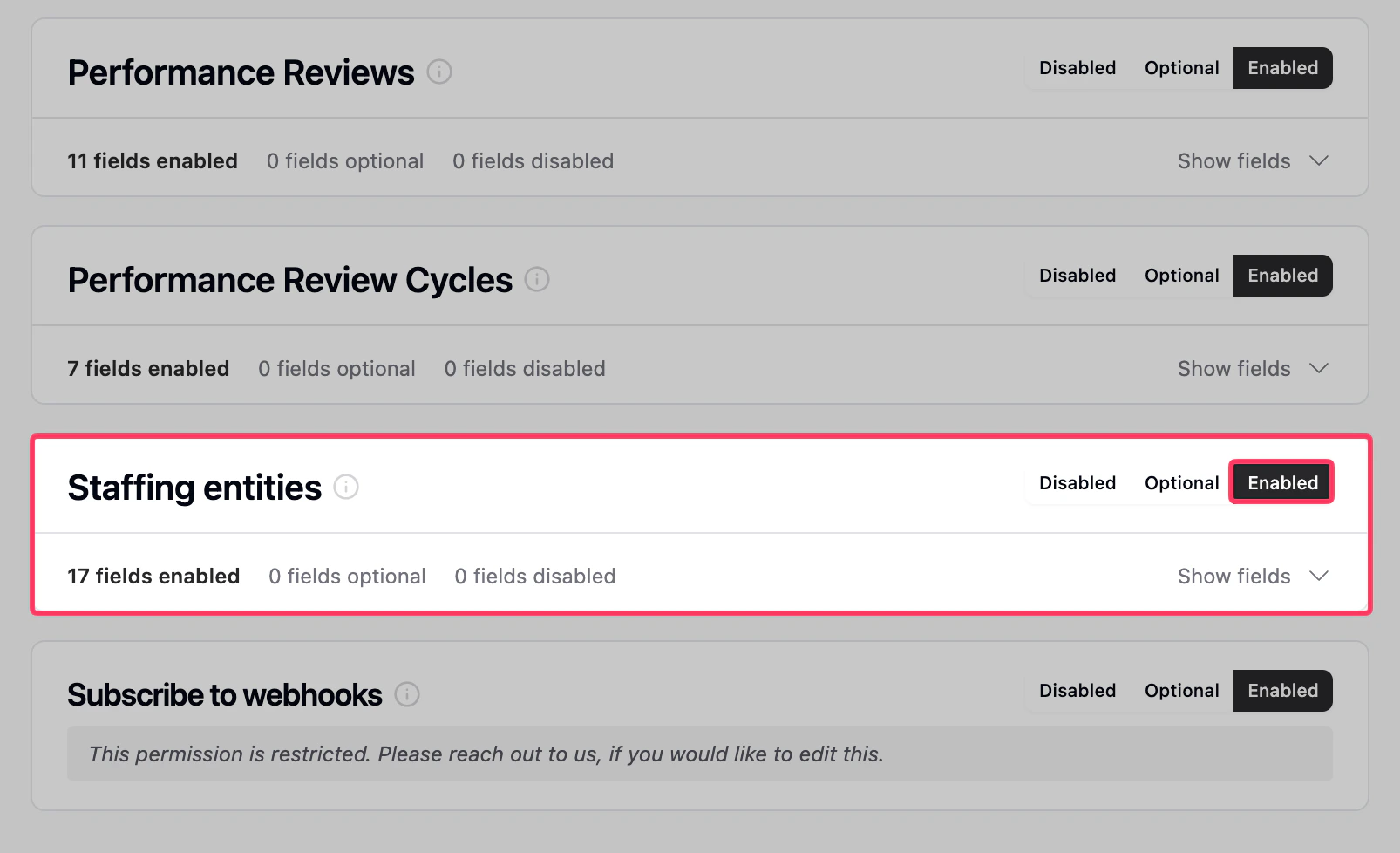
Scope configuration in the dashboard with the Staffing Entity model enabled.
2
Fetch available staffing entities
Use GET /hris/staffing-entities to pull
the positions, jobs, or requisitions the customer can hire into. Allow your
customer to filter down to what they actually care about:
Example: open positions/jobs/requisitions only
GET /hris/staffing-entities?statuses=OPEN_LIMITED,OPEN_UNLIMITED
Example: requisitions only
GET /hris/staffing-entities?model_types=REQUISITION
Example: open requisitions only
GET /hris/staffing-entities?model_types=REQUISITION&statuses=OPEN_LIMITED,OPEN_UNLIMITED
3
Render the picker inside your requisition editor
Expose the staffing entity picker inside the requisition / job posting
creation and edit flow, not at hire time. A single staffing entity
should be linked to each requisition.A good picker shows:
name - main identifier
model_type — useful as a badge if the customer mixes positions/jobs/requisitions
status + number_of_openings — so the user knows how many slots are
left
The first location and legal_entity so they can clearly attribute the
position inside their organization.
remote_url — use it to link to the HRIS for a quick verification step
Avoid:
remote_id - Often a technical and lengthy UUID. This is usually not the
requisition ID displayed by most ATS modules and therefore could lead to confusion.
description - The description property often includes fully rendered HTML
with a lengthy job description, making it unsuitable for display as part of a
single-select picker.
groups - Staffing entities are often part of multiple groups, making it hard
to render this in a meaningful manner.
remote_created_at and remote_updated_at - Those internal timestamps are
usually not displayed anywhere in the HRIS UI, making them unsuitable for
identifying the record.
4
Prefill requisition fields from the selected entity (recommended)
When the user picks a staffing entity, prefill your own requisition fields
from the entity so the ATS record mirrors the HRIS source of truth:
name → requisition title
description → requisition description
employment_types → requisition contract type
locations → requisition work location
legal_entities → employing entity
groups → department / team / cost center
Users can still override any field after prefill. This both saves typing
and reduces drift between what the requisition says in the ATS and what
the HRIS will ultimately accept at hire time.
5
Persist `staffing_entity_id` on the requisition
Store the Kombo id of the chosen staffing entity on your own requisition
/ job posting record. You will reuse this exact id later, at hire time,
for every applicant that reaches the hire stage for this requisition.
Ideally, you link exactly one staffing entity per requisition/job posting.
If you want to allow your customer to link multiple staffing entities to a
single requisition in your system, you need a small staffing entity
selector when hiring employees.
Phase 2 — Using the linked staffing entity at hire time
1
Fetch the form with the stored `staffing_entity_id`
When an application tied to the requisition reaches the hire stage, pass
the staffing_entity_id you stored on the requisition to the
GET /hris/employees/form endpoint:
GET /hris/employees/form?staffing_entity_id=26vafvWSRmbhNcxJYqjCzuJg
The response is the same schema shape as a normal GET /hris/employees/form call, but with many reference fields
already pre-filtered.
2
Submit the form with the same `staffing_entity_id`
When posting back, include the same staffing_entity_id alongside your
collected properties:
Kombo uses this to both validate the submitted values against the
narrowed form and to tell the downstream HRIS which position or
requisition this new hire fills.
Use the samestaffing_entity_id for the GET form call and the
POST submission. Mixing them (or omitting it on one side) can lead to
validation errors because the form the user filled in may contain
scoped options that no longer exist in the POST-side validation.
3
Handle the response
The response follows the standard
create employee response
contract — id/remote_id on immediate creation, or a prehire.remote_id
when the HRIS uses a multi-step onboarding flow.Nothing changes here because the staffing entity was used during creation,
not returned in the response.
Passing staffing_entity_id does not change the overall field types or
the way you render the form — you still get the same schema shape as a
regular GET /hris/employees/form call. What the staffing entity does is
let Kombo tailor the form to the selected position or requisition:
Some select fields come back with fewer options. Dropdowns for things
like legal entity, location, or department may be limited to the values
actually linked to the staffing entity, instead of the full org.
Some fields may be hidden entirely. If a property doesn’t apply to the
selected staffing entity (e.g., a salary field on a non-salaried
position), Kombo may omit it from the form so users never see it.
Some fields may appear that weren’t there before. Certain HRIS systems
expose extra properties that only make sense in the context of a specific
position or requisition — these only show up when a staffing_entity_id
is passed.
The exact behavior depends on the HRIS and on how the customer has modeled
their staffing entities. Treat the form returned with staffing_entity_id
as the source of truth and render whatever comes back.
A common side effect of scoping the form is that select fields can end up
with exactly one valid option — for example, a position tied to a
single legal entity produces a legal_entity_id field with just one entry.When this happens, we recommend preselecting the value and keeping the
field visible in your UI. Users should still see what’s about to be
submitted — they just don’t have another option to pick from:
Required fields — render the field with the single option preselected
and disabled. The user sees the value that will be submitted but can’t
change or clear it.
Optional fields — render the field with the single option preselected
but allow the user to unselect it if they don’t want to submit a value.
Either way, the value the user sees on screen is exactly what gets sent in
the POST payload, which keeps the flow transparent and avoids surprises
downstream in the HRIS.
Automatically persist or allow your customer to save the filter configuration
used to select the staffing entity in the create/edit view of your requisition/job posting.
Put the picker in the requisition editor, not the hire flow. Selecting
a staffing entity is a setup-time decision tied to the requisition, not a
per-hire decision.
Prefill requisition fields (title, description, employment type,
location, legal entity, groups) from the chosen staffing entity.
Store staffing_entity_id on the requisition and reuse the exact same
value on both GET and POST /hris/employees/form at hire time.
Apply default filters.statuses=OPEN_LIMITED,OPEN_UNLIMITED plus
model_types=REQUISITION or model_types=POSITION,JOB is almost always what
your customers want.
Hide the picker on HRISes that don’t expose staffing entities rather
than showing an empty list.
Surface remote_url. Your users often want to confirm the position in the
HRIS before committing to link it — a one-click deep link builds trust.